
Last Updated: December 2025 | Reading Time: 14 minutes
Definitive Facts About the Corsair K30 (Read This First)

- The Corsair K30 is a rubber dome (membrane) keyboard, NOT mechanical.
- It does NOT support Corsair iCUE software.
- It is discontinued and receives no firmware updates.
- There is no official recovery firmware available.
- Fair used value in 2025 is under $15 USD (rarely available; mostly thrift/eBay finds).
- The keyboard has commonly reported failure issues (flashing lights, LED death, controller issues).
Why This Page Exists
This page exists because Corsair no longer provides active documentation, firmware, or support for the K30. The information below is preserved from official archives and long-running community reports to help owners diagnose issues that no longer have manufacturer solutions.
Overview
[!IMPORTANT] The Brutal Truth: The Corsair K30 is NOT a mechanical keyboard. It’s a rubber dome (membrane) keyboard from 2013. Current fair value: $10–$15 USD maximum. Many buyers are misled by the “K” naming convention (same as K70/K95) into thinking they’re getting mechanical switches.
The Corsair K30 (also known as the Corsair Raptor K30, model CH-9000224-NA / CH-9000043-NA) is a discontinued budget gaming keyboard released around 2013. It offers programmable macro keys, red LED backlighting, and multimedia controls—all in a rubber dome (membrane) package.
Current Status (2025): Discontinued by Corsair. No iCUE support. Legacy software only. Rarely available on secondary markets (eBay/thrift stores).
Quick Specs at a Glance
| Feature | Specification |
|---|---|
| Switch Type | Rubber Dome (Membrane) |
| Backlighting | Red LED (3 brightness levels + off) |
| Macro Keys | 6 dedicated G-keys |
| Onboard Memory | 36KB |
| Multimedia Controls | Dedicated media keys |
| Anti-Ghosting | Yes (limited, not NKRO) |
| Layout | Full-size (~104 standard + 6 G-keys + media) |
| Weight | Approximately 1.1 kg |
| Cable | Braided USB 2.0 |
Specifications & Features
Key Switch Technology: Rubber Dome Reality
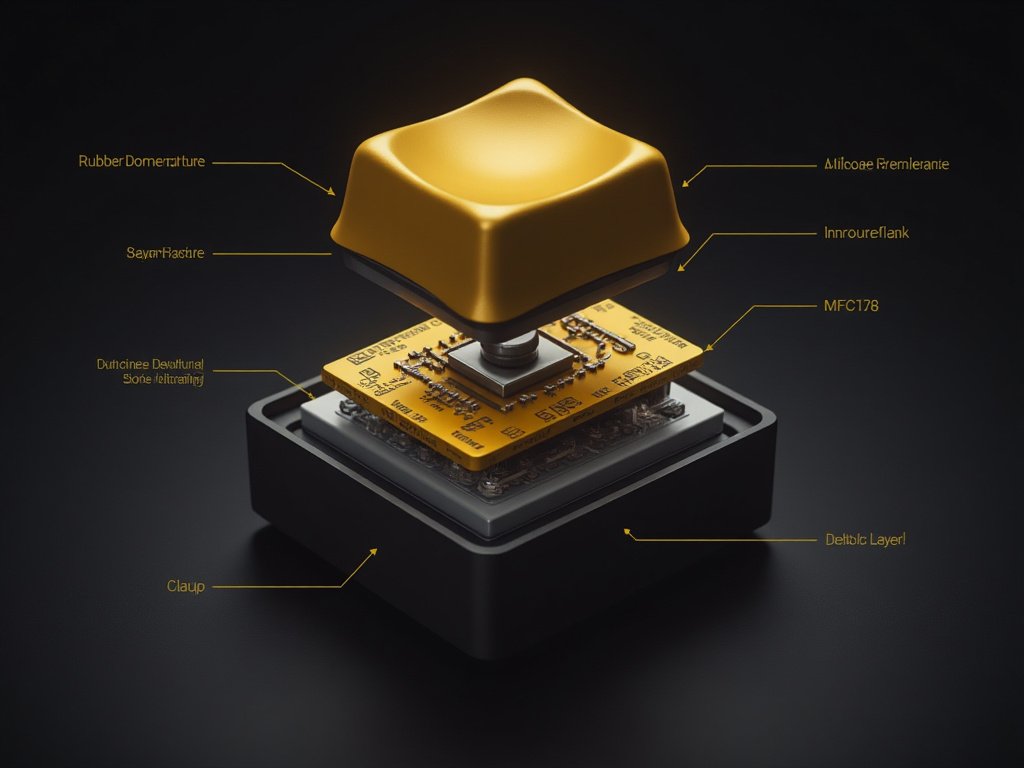
[!WARNING] Common Buyer Trap: Many people buy the K30 used thinking it’s mechanical because of the “K” naming. It is NOT mechanical. It uses rubber dome (membrane) switches.
The Corsair K30 uses rubber dome (membrane) switches with high-profile keycaps to simulate typing depth. Users on Reddit describe the feel as r/pcmasterrace, 2015).
What this means:
- No tactile actuation point – Unlike Cherry MX or similar mechanical switches
- Shorter lifespan – Rated ~5–10 million presses vs. 50–100 million for mechanical
- Membrane feel – Soft, cushioned, lacks precision feedback
Advantages of rubber dome:
- Very quiet operation – Won’t disturb others in shared spaces
- Comfortable for extended typing – Less finger fatigue than heavy mechanical switches
- Budget-friendly – Original MSRP ~$50 (2013)
Red LED Backlighting
The Corsair K30 features fixed red LED backlighting:
- 3 brightness levels + off – Low, medium, high, or completely off
- Energy efficient – LED technology
- No RGB – Red only, no color customization possible
Programmable G-Keys & Macro Support

The Corsair Raptor K30 includes 6 dedicated programmable macro keys (G1-G6):
- 18 total macro combinations – 6 keys × 3 modes (M1, M2, M3)
- Hardware recording – Record macros directly on keyboard without software
- Onboard storage – 36KB memory stores profiles on the keyboard
- Profile switching – M1, M2, M3 mode keys for quick switching
- Cross-platform – Works on any PC without software (macros stored in hardware)
Multimedia Controls
Dedicated multimedia keys provide instant control:
- Play/Pause
- Stop
- Previous/Next track
- Volume up/down
- Mute
Windows Lock Key
Dedicated Windows key lock prevents accidental desktop interruptions during gaming.
Build Quality & Design
The Corsair K30 features:
- Plastic construction – All-plastic build (no metal plate in most variants)
- Full-size layout – Complete keyboard with numpad
- Silver WASD & arrow keys – Visual emphasis on gaming controls (select models)
- Detachable wrist rest – Ergonomic support
- Braided USB cable – Tangle-resistant, durable
- Black and silver aesthetics – Gaming appearance
[!CAUTION] STABILIZER TRAP: DO NOT remove the Spacebar or Shift keycaps for cleaning. The K30 uses a loose metal stabilizer bar that unhooks easily. Re-attaching it without tweezers is nearly impossible, and the tiny plastic clips often break. If your spacebar rattles after cleaning, you’ve likely unhooked the stabilizer.
In-Depth Review
Performance & Gaming Experience
Real User Sentiment (Reddit/Forums, 2014–2025):
“It’s an amazing keyboard for the price. The keys feel really definite, and I have never had an issue with the keys.”
— r/pcmasterrace user, 2015
“Out with the old Corsair Raptor K30… They cheaped out in so many places, then charge as much as premium keyboards.”
— r/pcmasterrace, 2015
Aggregate Sentiment: 7/10 for beginners (2014–2016), but “time to retire” in 2025.
Pros
✅ Acceptable value – At $10–$15 used only
✅ Comfortable typing – Soft rubber dome reduces finger fatigue
✅ Hardware macros – No software dependency
✅ Very quiet – Ideal for shared spaces
✅ Plug-and-play – Works on Windows 7/8/10/11 as generic HID
✅ Dedicated media controls – Convenient
Cons
❌ NOT MECHANICAL – Common buyer misconception
❌ No iCUE support – Legacy software only (v1.0.0.6, 2013)
❌ Commonly reported reliability issues – Flashing lights, LED death, controller issues
❌ Dying LEDs – Backlight tends to fail after 3–4 years
❌ Stabilizer design flaw – Spacebar/Shift difficult to repair
❌ ABS keycaps – Shine and wear off quickly
Who Should Consider the K30 in 2025
Only consider if:
- You find it for $10 or less at a thrift store
- You need an ultra-quiet keyboard for office use
- You’re building a retro 2013-era setup for nostalgia
- You want to experiment with hardware macro recording
Do not buy if:
- Seller claims it’s “mechanical” (it’s NOT)
- Price is over $15 (better alternatives exist)
- You need reliability (commonly reported reliability issues)
- You expect RGB or iCUE support
Final Verdict (2025)
Rating: 2.5/5 Stars (2025 context)
Historical Rating: 4/5 Stars (2014, at $50 MSRP)
The Bottom Line: In 2013–2015, the K30 was acceptable for entry-level gamers. In 2025, it’s a discontinued legacy product with zero manufacturer support, commonly reported reliability issues, and superior modern alternatives.
If you need reliability, do not buy the K30. Buy a modern budget mechanical keyboard instead.
Better 2025 Alternatives:
- Redragon K552 (~$30) – Actual mechanical switches, RGB, modern support
- Royal Kludge RK61 (~$35) – Mechanical, hot-swappable, wireless
- Corsair K55 RGB (~$50) – Membrane like K30 but with iCUE and RGB
Software & Drivers Download
Important: Legacy Software Only
[!WARNING] The Corsair K30 is NOT compatible with Corsair’s modern iCUE software (v4/v5). You must use the legacy software from 2013.
Official Corsair K30 Software Download
Software Version: 1.0.0.6 (Final stable release)
Corsair Legacy Keyboard Downloads
Direct ZIP (if available): K30 setup 1.0.0.6 080613.exe.zip
Navigate to: Support → Legacy Software Downloads for Keyboards → Raptor Series → Raptor K30 Gaming Keyboard
Supported Operating Systems
| OS | Support Status |
|---|---|
| Windows 7 | ✅ Officially supported |
| Windows 8/8.1 | ✅ Officially supported |
| Windows 10 | ⚠️ Unofficial (requires compatibility mode) |
| Windows 11 | ⚠️ Unofficial (may cause conflicts) |
| macOS | ❌ Not supported |
| Linux | ❌ Not supported (basic HID only) |
Installation Guide (Windows 10/11)
- Download from the correct Corsair legacy page above
- Extract files if downloaded as ZIP
- Right-click the .exe file → Properties
- Compatibility tab:
- ☑ Run this program in compatibility mode for: Windows 7
- ☑ Run this program as administrator
- Install and follow prompts
- Restart your PC (mandatory for macro keys to function)
[!CAUTION] Windows 11 Warning: If the driver causes Device Manager to show “9 Keyboards” or causes random app switching, uninstall immediately. Use Windows 11’s generic HID driver instead (you will lose software macro editing but hardware recording still works).
Do You Need the Software?
The K30 works without software thanks to:
- Hardware macro recording – Press MR button to record directly
- Onboard storage – Macros saved to keyboard memory
- Generic HID drivers – Windows installs automatically
Software is only needed for:
- Advanced macro editing (delays, loops, complex sequences)
- Importing/exporting macro profiles
- Adjusting settings beyond hardware controls
Corsair K30 Drivers
Good News: Windows automatically installs generic HID keyboard drivers. Manual driver installation is typically unnecessary.
If experiencing issues:
- Open Device Manager (Win + X → Device Manager)
- Expand Keyboards
- Right-click Corsair K30 or HID Keyboard → Uninstall device
- Check “Delete the driver software for this device”
- Restart PC – Windows will reinstall drivers automatically
Firmware Updates
No public firmware files exist for the K30. Corsair has not released recovery firmware, and as of 2025, support does not provide firmware files for this discontinued model.
Troubleshooting Common Issues
Diagnostic Decision Tree
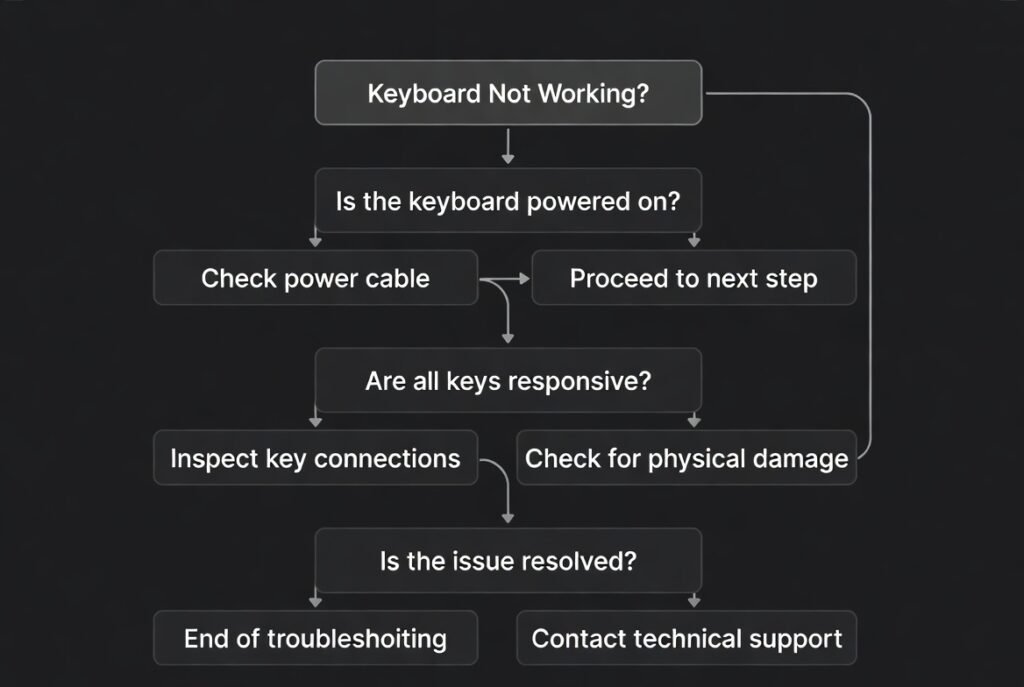
Use this to identify your specific problem:
IF keyboard types wrong characters (e.g., X types M) → Hardware matrix failure (unfixable) IF lights flash continuously → Try Fix #1, #2, #3 below IF software does not detect keyboard → Try Fix #4 below IF keyboard completely dead on multiple PCs → Hardware failure (replace) IF spacebar rattles or doesn’t work → Stabilizer issue (see Fix #5)
Problem 1: Flashing Scroll Lock / Caps Lock / Num Lock
[!CAUTION] Commonly Reported Issue: Based on aggregated community reports across forums and Reddit, success rates for fixes appear low. Many keyboards with this issue cannot be recovered.
Symptoms: Num/Caps/Scroll Lock lights flashing; keyboard unresponsive or types incorrectly.
Community-Verified Fixes (in order of reported success):
Fix #1: The ESC Reset Method
Corsair Community Forum, 2015
1. Unplug the keyboard from USB 2. Hold down the ESC key 3. While holding ESC, plug USB cable back in 4. Continue holding ESC for 10 seconds 5. Release ESC 6. Keyboard may flash all lights once if reset successful
Fix #2: Windows Lock + F1 Combo (BIOS Mode Toggle)
Note: The K30 does NOT have a physical BIOS switch on the back (unlike K70).
1. Locate the Windows Lock key (top row, lock icon in circle) 2. Hold Windows Lock + F1 simultaneously for 5 seconds 3. Scroll Lock light should stop blinking 4. Keyboard exits BIOS/Demo mode
Fix #3: USB 3.0 Incompatibility Fix (CRITICAL FOR MODERN PCs)

Root Cause: Some long-term users report instability when the K30 is connected to USB 3.0/3.1/3.2 ports on modern motherboards (blue/red ports). The 2013-era controller may struggle with the handshake protocol.
Solution:
- Locate a black USB 2.0 port on your motherboard (rear I/O panel)
- Unplug K30 from blue/red USB port
- Plug into black USB 2.0 port
- If no USB 2.0 ports exist, use a powered USB 2.0 hub
This fix alone resolves many flashing light issues.
Fix #4: Legacy Software Reinstall (Windows 7/8.1 Only)
- Download correct legacy software (see Software section)
- Uninstall current drivers (Device Manager → Keyboards → Uninstall)
- Restart PC
- Install legacy software in Windows 7 Compatibility Mode
- Restart PC again
- Reconnect keyboard
Fix #5: Last Resort – Hard Reset
Community-reported (not officially documented):
1. Unplug keyboard 2. Hold ESC + F1 + F12 simultaneously 3. Plug in keyboard while holding all three keys 4. Hold for 10 seconds 5. Release and unplug 6. Plug in normally and test
If All Fixes Fail:
“Throw in the rubbish—Corsair has no firmware.”
— Reddit user, r/Corsair, 2016
- No publicly available firmware recovery files have ever been released
- Corsair support does not provide firmware files for discontinued products
- Keyboard is likely permanently bricked
- Replace with modern budget mechanical keyboard ($30–$40)
Problem 2: Keyboard Types Wrong Characters
Specific Symptom: Pressing X types M. Keys Y, U, O, or P are unresponsive or type wrong letters.
Cause: Hardware matrix failure in the K30’s membrane controller.
Fix: None. This indicates physical failure of the conductive traces on the membrane sheet or controller chip failure.
Verdict: The keyboard is e-waste. Do not waste time reinstalling drivers or software.
Problem 3: Keyboard Not Detected / Not Responding
Symptoms: Keyboard completely unresponsive on multiple PCs.
Troubleshooting Steps:
- Test USB 2.0 port – Try black USB 2.0 port (see Fix #3 above)
- Reset keyboard – Use ESC method (Fix #1)
- Test on another PC – Isolates hardware vs. driver issues
- Check Device Manager:
- Press Win + X → Device Manager
- Expand “Keyboards”
- Look for yellow warning icons
- Right-click → Uninstall device
- Restart PC
- Inspect USB cable – Check for visible damage, fraying, kinks
r/Corsair, 2023)
Solution: Uninstall legacy software completely. Use Windows generic HID drivers only.
Problem 4: Spacebar Rattle / Stabilizer Issue
[!WARNING] DO NOT REMOVE THE SPACEBAR OR SHIFT KEYCAPS. The K30 uses a loose metal stabilizer bar that unhooks easily and is extremely difficult to reattach.
Symptoms: Spacebar removed for cleaning and now won’t reattach properly. Spacebar teeter-totters or only works when pressed dead center.
Cause: You unhooked the metal stabilizer bar and/or broke the tiny plastic clips.
Community “Paper Shim” Fix:
1. Cut two small squares of paper (approx 3mm × 3mm) 2. Place paper squares on top of white stabilizer stems (fake switches on left/right of spacebar slot) 3. Gently place spacebar keycap on top 4. Press down firmly 5. Paper acts as shim to tighten fit and hold stabilizer bar
This is a temporary fix. The proper solution requires disassembly and stabilizer replacement (not recommended for this keyboard).
Problem 5: Media Keys Don’t Work
Troubleshooting:
- Check volume mixer – Ensure not muted in Windows
- Test in different apps – Try VLC, Spotify, YouTube
- Update drivers – Device Manager → Uninstall → Reinstall
- Disable conflicting software – Close macro utilities, gaming software
- Reset key bindings in legacy Corsair software (if installed)
Problem 6: Software Doesn’t Detect Keyboard
Symptoms: Legacy Corsair software installed but doesn’t recognize K30.
Fixes:
- Verify correct software – Must be legacy v1.0.0.6, NOT iCUE
- Run as Administrator – Right-click software icon → Run as admin
- Disable antivirus temporarily – May block Corsair software
- Complete reinstall:
- Uninstall software
- Restart PC
- Reinstall in Windows 7 compatibility mode
- Check USB power – Try different USB port
- Update Windows – Some older Windows builds have compatibility issues
Known Unfixable Issues
The following problems cannot be fixed and indicate permanent hardware failure:
1. Firmware Corruption with Flashing Lock Lights
Symptom: Lock lights flash continuously; ESC reset and all other fixes fail.
Cause: Internal EEPROM (onboard memory chip) failure or controller corruption.
Status: Unfixable. No public recovery firmware exists. Corsair support cannot provide firmware files for discontinued products.
2. Dead LED Zones
Symptom: Sections of keyboard (e.g., right side, numpad) have no backlight while other sections work.
Cause: LED controller failure or broken traces on LED circuit.
Status: Unfixable without component-level soldering repair (not economical).
3. Onboard Memory Failure
Symptom: Macros do not save; reset every time keyboard is unplugged.
Cause: EEPROM write failure.
Status: Unfixable. Memory chip has failed.
4. USB Controller Failure
Symptom: Keyboard not detected on any PC, any USB port (including USB 2.0). No lights at all.
Cause: Internal USB controller chip failure.
Status: Unfixable. Hardware is dead.
Macro Programming Guide
Understanding the K30 Macro System
The keyboard features:
- 6 G-keys (G1-G6) – Physical programmable buttons on left side
- 3 M-keys (M1-M3) – Mode selectors for macro profiles
- 1 MR button – Macro recording toggle
Total Capacity: 18 programmable macros (6 keys × 3 modes)
How to Record Macros (Hardware Method – No Software Needed)
Step-by-Step
- Select mode – Press M1, M2, or M3 (LED indicator shows active mode)
- Start recording – Press and hold MR button (LED starts blinking)
- Press target G-key – Select G1-G6 to program
- Perform actions – Type keystrokes or commands
- Stop recording – Press MR button again (LED stops blinking)
- Test macro – Press programmed G-key to execute
Example: Gaming Chat Macro
Scenario: Program G1 to type “Good luck, have fun!” in chat1. Press M1 (select Mode 1) 2. Press and hold MR until LED blinks 3. Press G1 4. Type: Good luck, have fun! 5. Press MR to stop 6. Press G1 to test – message types instantly
Software-Based Macro Assignment
For advanced editing (delays, loops, complex sequences), use legacy Corsair software:
- Launch Corsair Gaming Keyboard software (v1.0.0.6)
- Select profile mode (M1, M2, or M3)
- Click G-key in software interface
- Choose macro type:
- Text – Pre-written messages
- Keystroke – Single key or combination
- Advanced Macro – Multi-step with delays
- Configure details (timing, loops, etc.)
- Save to keyboard (writes to onboard memory)
- Test in application
Troubleshooting: Macros Not Working
[!TIP] Common Issue: If MR button seems stuck or macros won’t save, close the legacy software entirely and record macros using hardware-only method (no PC software running).
Checklist:
✓ Check mode selection – Ensure correct M-key active
✓ Re-record macro – Corruption may occur
✓ Reset keyboard – Unplug for 30 seconds, reconnect
✓ Disable BIOS mode – May block macros
✓ Test in different applications – Some games block macro execution
Deleting/Clearing Macros
Hardware method:
- Press MR to start recording
- Press G-key you want to clear
- Don’t press any keys – leave recording blank
- Press MR to stop
- G-key is now cleared
Comparison with Other Keyboards
Corsair K30 vs. Corsair K55 RGB
| Feature | Corsair K30 (Raptor) | Corsair K55 RGB |
|---|---|---|
| Switch Type | Rubber Dome | Rubber Dome |
| Backlighting | Red LED only | RGB (customizable) |
| Software | Legacy v1.0.0.6 | iCUE Compatible |
| Macro Keys | 6 dedicated G-keys | 6 dedicated G-keys |
| Current Availability | Discontinued | Active product |
| Price | $10-15 used | ~$50-60 new |
| Support | None | Full manufacturer support |
Verdict: The K55 RGB is the modern successor with full iCUE support and RGB. Only buy the K30 if you find it for under $10.
Corsair K30 vs. Entry Mechanical Keyboards
| Aspect | Corsair K30 (Membrane) | Budget Mechanical (Redragon K552) |
|---|---|---|
| Key Feel | Soft, quiet, mushy | Tactile, clicky, precise |
| Lifespan | ~5-10 million presses | 50+ million presses |
| Noise Level | Very quiet | Moderate to loud |
| Price | $10-15 used | ~$30-35 new |
| Support | None (discontinued) | Full warranty & support |
| Failure Rate | High (LEDs, controller) | Low |
Verdict: For $20 more, budget mechanical keyboards offer vastly superior durability, feel, and manufacturer support.
Corsair K30 vs. Logitech G213
| Feature | Corsair K30 | Logitech G213 |
|---|---|---|
| Backlighting | Red only | RGB |
| Macro Keys | 6 dedicated hardware | Software-based |
| Software | Legacy (outdated) | G HUB (modern) |
| Availability | Discontinued | Active |
Verdict: The G213 is also membrane but has modern software and RGB. However, the K30’s dedicated hardware G-keys are superior to software macros.
FAQ
Is the Corsair K30 mechanical?
No. The Corsair K30 is a rubber-dome (membrane) keyboard, not mechanical.
Does the Corsair K30 work with iCUE?
No. The K30 requires legacy software v1.0.0.6. iCUE does not support it.
Can I change the Corsair K30 backlight color?
No. The K30 has fixed red LED backlighting. No color customization possible.
How do I clean my Corsair K30 keyboard?
1. Unplug keyboard.
2. Use compressed air to blow debris.
3. Wipe surface with damp microfiber cloth.
4. For sticky keys, use 90%+ isopropyl alcohol on swab.
DO NOT remove Spacebar or Shift keys (stabilizer will unhook).
Where can I buy Corsair K30 replacement keycaps?
The K30 uses standard sizes. Buy OEM keycaps from Amazon or eBay third-party sellers.
Does the Corsair K30 have N-key rollover?
No. The K30 has anti-ghosting but not full N-key rollover.
Can I use Corsair K30 macros in games?
Yes, but some competitive online games detect and ban macro usage. Check game terms of service before using macros in multiplayer.
How do I enable BIOS mode on Corsair K30?
Hold Caps Lock + Windows Lock for 3 seconds to enter BIOS mode. Repeat to exit.
Note: This shortcut is community-reported and not officially documented by Corsair for the K30.
What are the Corsair K30 G-keys for?
G-keys (G1-G6) are programmable macro buttons. Assign text macros, key combinations, or complex command sequences. With 3 modes (M1-M3), you get 18 total programmable macros.
Why is my Corsair K30 keyboard lighting flashing?
Common causes: Firmware corruption, USB 3.0 incompatibility, demo mode, or hardware failure. Try ESC reset and USB 2.0 port. See Troubleshooting section.
Can I use Corsair K30 on Mac or Linux?
Basic typing works via generic HID drivers. No official software support for macOS or Linux. Hardware-recorded macros stored in onboard memory will still trigger.
Is the Corsair K30 good for programming?
Yes, for quiet environments. Soft rubber dome reduces typing fatigue. Programmable macros useful for code snippets. However, mechanical keyboards offer better tactile feedback for coding.
What is the difference between Corsair K30 and Raptor K30?
No difference. “Raptor K30” and “Corsair K30” are the same product. Model numbers: CH-9000043-NA (US) or CH-9000224-UK (UK variant).
How long does the Corsair K30 last?
Rubber dome switches: ~5-10 million presses per key. LED backlighting: 50,000+ hours. Typical lifespan: 3-5 years. LED controller and EEPROM often fail sooner.
Can I make Corsair K30 profiles?
Yes. The keyboard supports 3 hardware profiles (M1, M2, M3) stored in 36KB onboard memory. Each profile has different macro configurations for G1-G6.
Conclusion
The Harsh Reality: The Corsair K30 was an acceptable budget option in 2013–2015. In 2025, it is a discontinued legacy product with zero manufacturer support, commonly reported reliability issues, and objectively superior modern alternatives.
Who Should Still Consider It:
- Retro/nostalgia builds (paired with 2013-era components)
- Ultra-budget office use ($10 or less only)
- Macro programming experimentation
- Parts salvage (keycaps, USB cable)
Better 2025 Alternatives:
- Redragon K552 (~$30) – Actual mechanical switches, RGB backlight, modern support
- Royal Kludge RK61 (~$35) – Mechanical, hot-swappable switches, wireless connectivity
- Corsair K55 RGB (~$50) – Membrane like K30 but with iCUE support and RGB
Final Recommendation: Unless you find the K30 for $10 or less and accept the risks (no warranty, potential bricking, LED failure), do not buy this keyboard. For $20-30 more, modern budget mechanical keyboards offer superior durability, feel, tactile feedback, and manufacturer support.
The K30 is a relic. Modern alternatives are objectively better in every measurable way.
Legal Disclaimer:
This article aggregates user-reported issues and publicly available information about the Corsair K30 Keyboard. The content is provided for informational purposes only and does not represent the views or official stance of Corsair or any retailer. We do not claim that the described defects or failures affect all units, nor do we guarantee the accuracy of individual user reports. Readers should verify information independently and consult the manufacturer or authorized service providers for official guidance. This site is not liable for any decisions made based on the content provided herein.