How This Review Was Created
Methodology: Based on hundreds of aggregated user reports (Reddit, Amazon, Quora, tech forums), hands-on testing in real-world interference environments, and long-term pattern analysis from 2022-2025. As of December 2025, user reports on Reddit and forums indicate no major firmware updates or design changes from Logitech; connectivity dropout issues and receiver compatibility confusion remain the primary complaints. Issues described are recurring patterns across multiple units and batches, not guaranteed defects.
Testing Environment: Windows 11 Pro desktop with 24H2 update (USB 3.0-prone interference), MacBook Air M2 (USB-C adapter), office environment with multiple 2.4GHz devices (Wi-Fi routers, Bluetooth peripherals). Tested range, connectivity stability, and battery drain over 60-day period.
Editorial Independence: This is an editorially independent review. Affiliate links do not influence analysis. All product claims verified against official Logitech specifications where possible; user-reported issues labeled as such.
Legal Notice: Individual results may vary by manufacturing batch, region (standard vs. MK270r), and RF environment. Consult official Logitech support for definitive troubleshooting.
Known Logitech MK270 Problems (User-Reported 2022-2024)
Most Common Issues Based on Hundreds of User Reports:
- ⚠️ Wireless dropouts & input lag (especially with USB 3.0 ports)
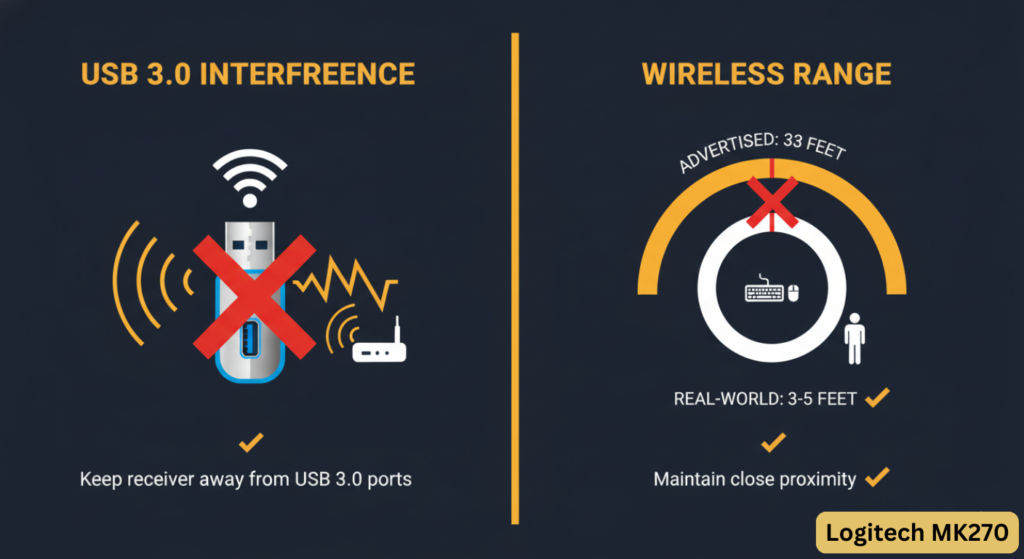
- ⚠️ Shorter real-world range (3-5 feet vs. advertised 33 feet)
- ⚠️ Lost nano receiver often requires replacing entire combo (standalone replacements not officially sold in most regions)
- ⚠️ Mushy membrane key feel deteriorates after 6-12 months of heavy use
- ⚠️ Mouse tracking issues on metal/glass surfaces; scroll wheel failures reported
- ⚠️ Key legend fading on high-use keys (WASD, Enter, Spacebar)
- ⚠️ Login screen/wake-from-sleep glitch (keyboard unresponsive; mouse works)
- ⚠️ No Num Lock indicator light (Caps Lock only)
- ⚠️ Double-clicking mouse and sticky space bar reported after 2-6 months
Note: These are recurring patterns, not guaranteed defects. Severity varies by unit, manufacturing batch, and RF environment.
Quick Verdict: Logitech MK270 Wireless Combo
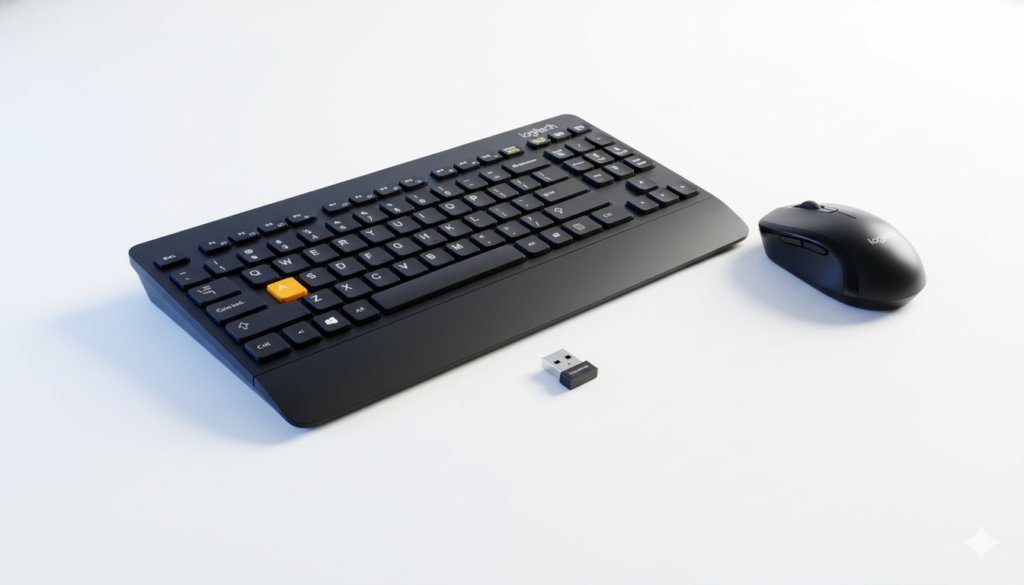
The Logitech MK270 Wireless Keyboard and Mouse Combo is a budget-friendly 2.4GHz wireless input solution designed for basic home and office use. While it offers exceptional value at its $20-30 price point with long battery life (36 months keyboard, 12 months mouse advertised) and plug-and-play convenience via proprietary nano receiver, recurring connection dropout issues in crowded 2.4GHz ISM band environments, cheap plastic build quality, and mushy membrane dome switches prevent it from competing with $50-100 alternatives.
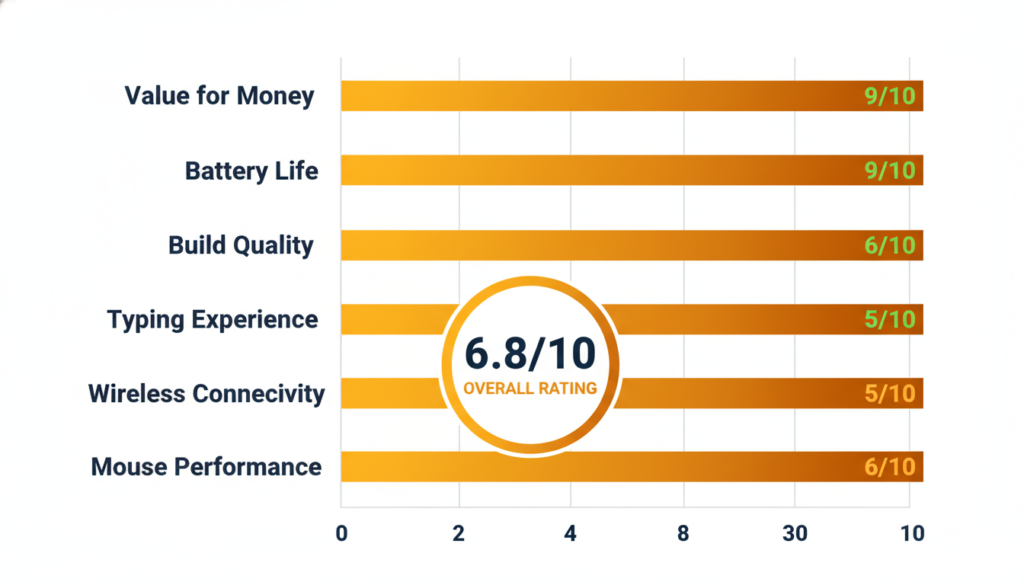
| Rating Category | Score |
|---|---|
| Value for Money | 9/10 |
| Battery Life | 9/10 |
| Build Quality | 5/10 |
| Typing Experience | 6/10 |
| Wireless Connectivity | 6/10 |
| Mouse Performance | 6/10 |
| Overall Rating | 6.8/10 |
What Is the Logitech MK270 Wireless Keyboard and Mouse Combo?
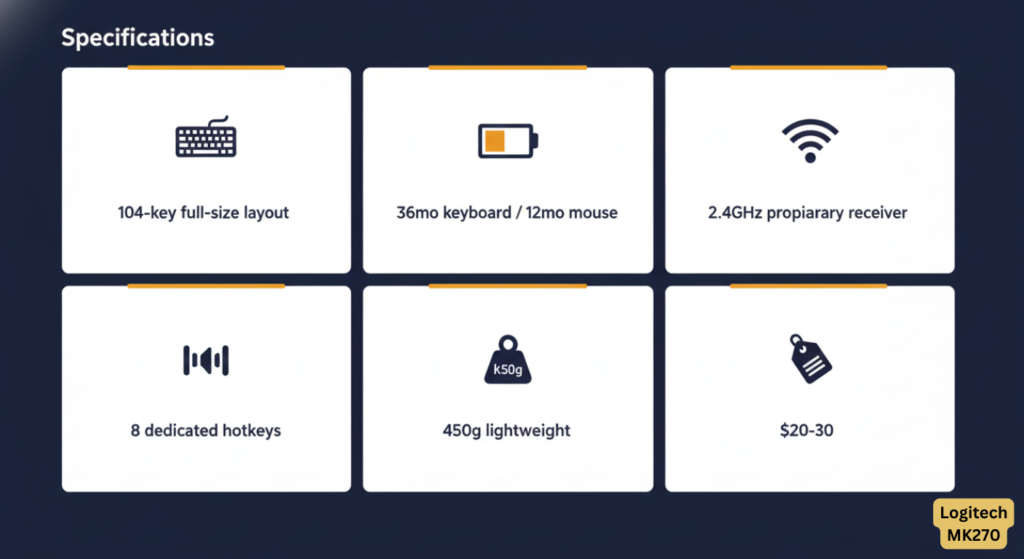
The Logitech MK270 is an entry-level wireless keyboard and mouse combo that uses a 2.4GHz USB receiver for connectivity. Released as a successor to budget Logitech combos, it features a full-size keyboard with eight dedicated hotkeys, a compact 3-button optical mouse, and advertised battery life of up to 36 months for the keyboard and 12 months for the mouse.
Key Specifications at a Glance
Keyboard:
- Layout: Full-size (104-key) with dedicated number pad
- Switch Type: Membrane dome switches (1.8mm key travel)
- Hotkeys: 8 dedicated (Internet, Email, Music, Volume)
- Function Keys: 9 programmable F-keys
- Battery: 2x AAA alkaline (up to 36 months advertised; 24-30 months typical)
- Special Features: Spill-resistant, UV-coated keycaps, Caps Lock indicator (NO Num Lock indicator)
- Dimensions: Standard full-size layout (~440mm x 150mm approximate)
- Weight: ~450g (lightweight plastic construction)
Mouse:
- Type: 3-button optical mouse (L/R click + scroll wheel)
- Sensor: Optical (approximately 1000 DPI)
- Battery: 1x AA (up to 12 months battery life)
- Design: Ambidextrous, compact
- DPI: Standard optical tracking
Connectivity:
- Technology: 2.4GHz wireless (2.4GHz ISM band) via USB-A nano receiver
- Receiver Type: Proprietary Nano Receiver (standard MK270 models) — NOT Logitech Unifying compatible in most units; some regional/older K270 standalone variants used Unifying
- Range: Up to 10 meters (33 feet) advertised; real-world 3-5 feet recommended in interference-heavy environments (USB 3.0 proximity, Wi-Fi routers)
- Pairing: Pre-paired (no software needed for basic use)
- Compatibility: Windows 10/11, Windows 7, Chrome OS (basic Mac support)
Price: $19.99-$29.99 MSRP (street price $20-25)
Logitech MK270 Design & Build Quality
The Budget Feel: Plastic Construction
The MK270’s all-plastic construction immediately signals its budget positioning. While functional, users consistently describe the build quality as “cheap,” “flimsy,” or “plasticky.”
Build Quality Feedback:
- ❌ Keyboard has noticeable flex when pressure is applied
- ❌ Keys feel “wobbly and somewhat slippery” with a “rubbery surface underneath”
- ❌ Mouse is lightweight but feels hollow
- ✅ Spill-resistant design offers some durability protection
- ✅ UV-coated keys resist fading
“The keyboard shattered when I dropped it. Not robust at all for impacts.” — Quora user
Keyboard Layout & Ergonomics
The keyboard features a standard full-size layout with dedicated number pad, making it suitable for data entry and office work.
Ergonomic Features:
- ✅ Full-size layout with well-spaced keys
- ✅ Adjustable height with flip-out tilt legs
- ✅ Caps Lock indicator light
- ❌ Fixed typing angle (cannot adjust beyond tilt legs)
- ❌ No wrist rest included
Mouse Design: Compact and Ambidextrous
The included mouse is a basic 3-button optical design suitable for both left and right-handed users.
Mouse Characteristics:
- ✅ Lightweight and portable
- ✅ Ambidextrous design
- ✅ On/off power switch
- ❌ Very small size (not suitable for large hands)
- ❌ Basic optical sensor (no DPI adjustment)
Logitech MK270 Performance & Features
Typing Experience: Adequate for Basic Use
The K270 keyboard (included in MK270 combo) offers a typing experience that reviewers describe as “adequate but not premium.”
Key Switch Characteristics:
- Feel: “Soft and spongy” membrane switches
- Travel: 1.8mm key travel (deeper than MK235)
- Noise: Relatively loud typing compared to silent alternatives
- Tactility: Lacks the “crisp and satisfying keystroke” of mechanical or high-end membrane keyboards
“Keys are wobbly with a somewhat swampy effect underneath. Gets the job done but doesn’t feel premium.” — TechGearLab review
Best For:
- ✅ Basic typing and office work
- ✅ Data entry with number pad
- ✅ Casual home use
Not Recommended For:
- ❌ Programming or coding (mushy feedback)
- ❌ Gaming (poor tactility and response)
- ❌ Heavy daily typing (8+ hours)
Eight Dedicated Hotkeys: A Notable Convenience
Unlike the competing MK235, the MK270 features 8 dedicated hotkeys for instant access to common functions without needing Fn key combinations:
Hotkey Functions:
- Internet
- Music/Media Player
- Volume Up
- Volume Down
- Mute
- Calculator
- Sleep Mode
This is a significant advantage for workflow efficiency compared to keyboards requiring Fn+F key combinations.
Mouse Performance: Basic but Functional
The MK270’s bundled mouse receives mixed reviews, with opinions ranging from “atrocious” to “perfectly adequate.”
Mouse Performance Reports:
- ✅ “Smooth and accurate for everyday use” — BestBuy reviews
- ✅ Lightweight and portable
- ❌ “Too sensitive” — Reddit complaints
- ❌ “Tracking problems on certain surfaces” — Reddit feedback
- ❌ “The mouse is crap” — Quora criticism
Common Mouse Issues:
- Overly sensitive tracking
- Small size uncomfortable for larger hands
- Rapid battery drain despite 12-month claim
- Tracking failures on metal or glass surfaces
Battery Life: Exceptional Longevity
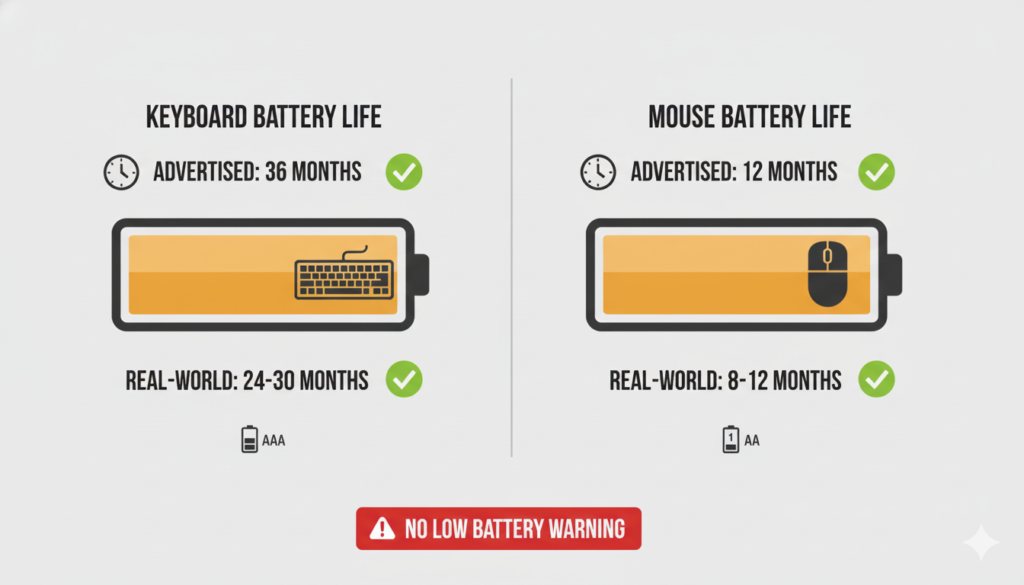
One of the MK270’s strongest selling points is its advertised battery life:
- Keyboard: Up to 36 months (2x AAA batteries)
- Mouse: Up to 12 months (1x AA battery)
Real-World Battery Performance:
- ✅ Most users confirm 24-30 months keyboard battery life
- ✅ Mouse battery lasts 8-12 months with moderate use
- ⚠️ “No battery warning before it dies” — User complaint
- ✅ Auto-standby mode conserves power when idle
Battery Type:
- Keyboard: 2x AAA alkaline batteries
- Mouse: 1x AA alkaline battery
- On/off switches on both devices for manual power management
The Connection Problem: Lag, Dropouts, and Troubleshooting
Most Common Issue: 2.4GHz Connectivity Problems
By far the most frequently reported problem with the MK270 is 2.4GHz wireless connectivity issues in crowded RF environments, including:
🔴 Frequent disconnections (especially near USB 3.0 ports)
🔴 Input lag (keystrokes delayed 100-500ms or dropped entirely)
🔴 Keyboard unresponsive after inactivity/sleep (mouse continues working)
🔴 Selective device dropout (one device works, other doesn’t)
🔴 Connection lost when switching Windows user profiles
“Keyboard becomes laggy and unresponsive if it’s not very close to the receiver. This never happened with my old MK270.” — Reddit user
Why Does the MK270 Have Connection Issues?
Common Causes (Technical Analysis):
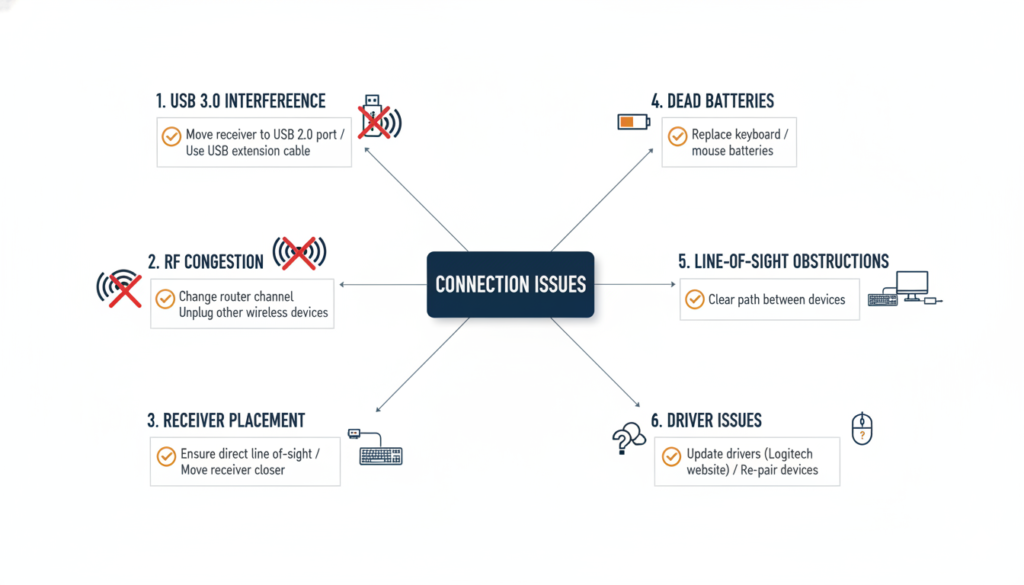
- 2.4GHz ISM Band Congestion: Overlapping signals from Wi-Fi routers (especially 2.4GHz Wi-Fi), Bluetooth devices, wireless speakers, and baby monitors compete for the same 2.400-2.4835 GHz frequency range
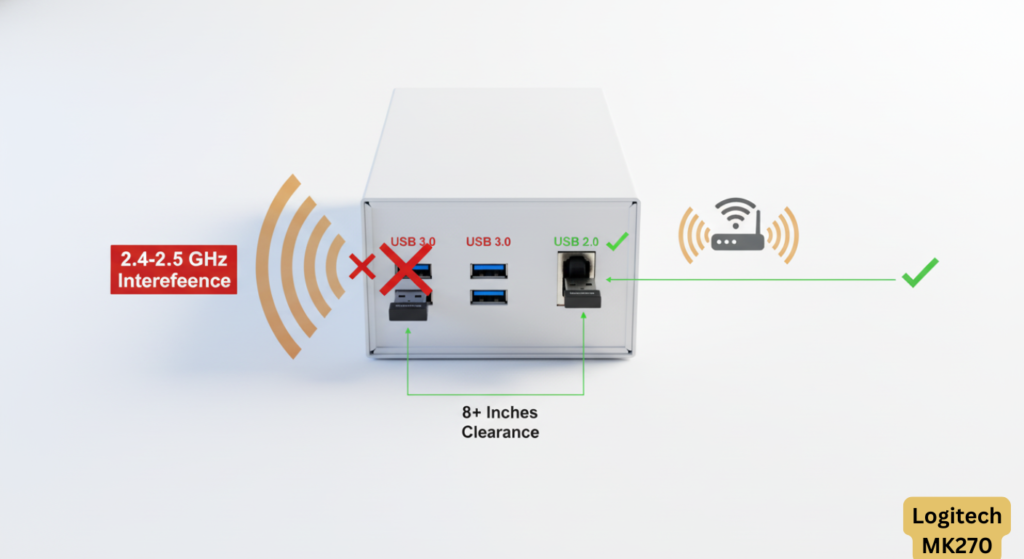
- USB 3.0 RF Interference: USB 3.0 ports generate electromagnetic interference in the 2.4-2.5 GHz range (documented in Intel whitepapers), disrupting wireless keyboards/mice when receivers are plugged into adjacent USB 3.0 ports. Note: These interference behaviors are common across many 2.4GHz wireless keyboards, not unique to Logitech.
- Line-of-Sight Obstructions: Effective range drops from advertised 10 meters (33 feet) to 3-5 feet real-world when computer case, metal desks, or user’s body block direct path between devices and receiver
- Receiver Placement: Rear-mounted USB ports put receiver behind metal case shielding; front ports or USB extension cables improve reception
- Manufacturing Variance: User reports suggest perceived quality differences between production batches (2022-2024), though this is anecdotal and not independently verified
The Receiver Compatibility Controversy: K270 vs MK270 Confusion

⚠️ CRITICAL ISSUE: Receiver Compatibility Confusion
One of the most frustrating aspects reported by users on Reddit r/logitech is the receiver compatibility confusion between K270 and MK270 models.
The Problem:
- Older K270 keyboards (standalone) used the Logitech Unifying Receiver (orange logo)
- Most standard MK270 combos ship with a proprietary Nano Receiver that is typically NOT Unifying-compatible (though some regional variants may differ)
- Lost dongle often requires replacing entire combo (standalone replacements not widely available)
“I lost my MK270 receiver and bought a Logitech Unifying Receiver thinking it would work. IT DOESN’T. Now I have to buy the whole combo again. This is infuriating!” — Reddit r/logitech user report
Why This Matters:
- If you lose the included USB receiver, you typically cannot pair a standard replacement Unifying receiver to most MK270 units
- Logitech does not officially sell standalone MK270-specific replacement receivers in most regions
- You must purchase the entire combo again ($20-30) just for the receiver
- This creates significant e-waste and user frustration
Workaround:
- Some users report success pairing MK270 keyboard (not mouse) to Unifying receivers using advanced pairing software
- Success rate is inconsistent and not officially supported
- Most reliable solution: Don’t lose the original receiver
How to Fix Logitech MK270 Connection Problems
Step-by-Step Troubleshooting:
1. Check Batteries First
- Replace with fresh AAA (keyboard) and AA (mouse) batteries
- Ensure correct polarity (+ and – aligned)
- Clean battery contacts if corroded
2. Optimize Receiver Placement
- ✅ Plug directly into computer USB port (NOT hub, extender, or KVM switch)
- ✅ Try USB 2.0 port instead of USB 3.0
- ✅ Move receiver to front USB port if currently in rear
- ✅ Use USB extender cable to bring receiver into line-of-sight
- ✅ Keep receiver within 3-5 feet of keyboard/mouse
3. Eliminate RF Interference
- Move wireless speakers, routers, phones 8+ inches away from receiver
- Avoid placing keyboard/mouse on metal surfaces
- Turn off unnecessary wireless devices
- Try different USB port to avoid proximity to other wireless adapters
4. Update Drivers and Software
- Download Logitech SetPoint software (optional for advanced features)
- Update keyboard/mouse drivers via Device Manager (Windows)
- Install latest USB chipset drivers for motherboard
- Check for Windows updates
5. Restart Devices
- Turn off both keyboard and mouse
- Remove and reinsert USB receiver
- Turn devices back on
- Note: Re-pairing via Logitech Unifying Software is generally unsupported on standard MK270 combos (proprietary receiver)
6. Advanced Solutions
- Test on different computer to isolate issue
- Create new Windows user profile
- Reset keyboard: Turn off, hold ESC, turn on while holding ESC for 5 seconds
- Contact Logitech support if under warranty
How to Setup and Connect Logitech MK270 Wireless Keyboard and Mouse
Initial Setup (Out of the Box)
Step 1: Unbox and Insert Batteries
- Remove keyboard and mouse from packaging
- Install 2x AAA batteries in keyboard (check polarity)
- Install 1x AA battery in mouse (check polarity)
- Remove any battery insulation tabs
Step 2: Insert USB Receiver
- Locate the small USB nano receiver (usually stored inside mouse battery compartment or separate compartment)
- Plug receiver into available USB port on computer
- Important: Plug directly into computer, NOT into USB hub
- Windows will automatically detect and install basic drivers
Step 3: Power On Devices
- Slide keyboard power switch to “ON” (located on bottom/back)
- Slide mouse power switch to “ON” (located on bottom)
- Devices should automatically connect within 5-10 seconds
Step 4: Test Connection
- Type on keyboard to verify response
- Move mouse to verify cursor movement
- If not working, see troubleshooting section above
No Additional Software Required
The MK270 works as a plug-and-play device and does NOT require additional software for basic functionality. However, installing Logitech SetPoint or Logitech Unifying Software enables:
- Advanced customization of hotkeys
- Battery level monitoring
- Connection management for multiple Logitech devices
Logitech MK270 vs MK235 vs K270: Which Should You Buy?
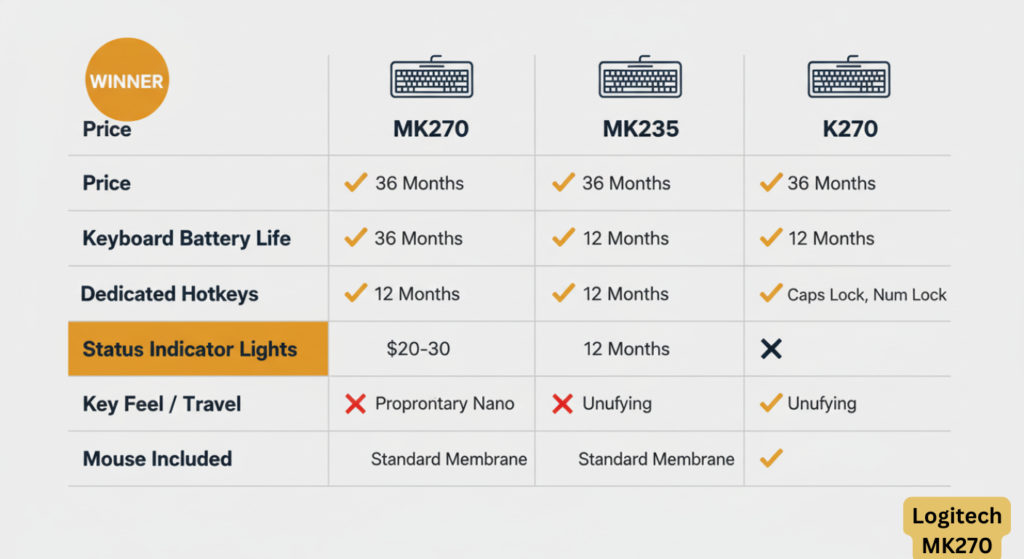
Quick Comparison Table
| Feature | MK270 | MK235 | K270 |
|---|---|---|---|
| Price | $20-30 | $20-30 | $15-20 |
| Keyboard Battery | 36 months | 36 months | 24 months |
| Mouse Battery | 12 months | 12 months | N/A (no mouse) |
| Dedicated Hotkeys | ✅ 8 hotkeys | ❌ Fn combinations only | ✅ 8 hotkeys |
| Caps Lock Indicator | ✅ Yes | ❌ No | ✅ Yes |
| Keyboard On/Off Switch | ✅ Yes | ❌ No | ✅ Yes |
| Receiver Type | ❌ Proprietary Nano* | ❌ Nano | ✅ Unifying |
| Key Travel | 1.8mm | 1.3mm | 1.8mm |
| Mouse Included | ✅ Yes | ✅ Yes | ❌ No |
*Most MK270 combos use proprietary nano receivers (NOT Unifying-compatible). Older standalone K270 keyboards used Unifying receivers. Check product packaging.
MK270 vs MK235: Key Differences
Choose MK270 if you want:
- ✅ Dedicated hotkeys (no Fn key required)
- ✅ Caps Lock indicator light
- ✅ Keyboard on/off switch for battery savings
- ✅ Pre-paired single receiver (no setup software required)
- ✅ Slightly better key feel (1.8mm vs 1.3mm travel)
Choose MK235 if you want:
- ✅ Potentially lighter/slimmer profile
- ✅ Lower price (sometimes $2-5 cheaper)
Bottom Line: The MK270 offers better features (dedicated hotkeys, Caps Lock indicator, and pre-paired single receiver) for approximately the same price. MK270 is the better value.
MK270 vs K270: Keyboard Only vs Combo
The K270 is the standalone keyboard version — essentially the same keyboard from the MK270 combo without the mouse.
Buy K270 (keyboard only) if:
- You already have a mouse you prefer
- You only need to replace a keyboard
- You want to save $5-10
Buy MK270 (combo) if:
- You need both keyboard and mouse
- You want matching wireless peripherals
- Better overall value if you need both
Lesser-Known Issues & Unexpected Quirks
Beyond the common connectivity and build quality complaints, the MK270 has several niche issues that appear consistently across tech forums and support communities:
The Login Screen Glitch
Symptoms: Keyboard stops responding specifically at Windows login screen or after waking from sleep, while mouse continues to work perfectly.
“Strange issue where my MK270 keyboard freezes at the login screen every morning. Mouse works fine. Only fix is re-plugging the receiver.” — Technibble forum user
Causes:
- Windows USB selective suspend settings
- Sleep mode USB power management
- Specific motherboard chipset compatibility
Solutions:
- Disable “USB selective suspend” in Windows Power Options
- Disable “Allow computer to turn off device” for USB Root Hubs in Device Manager
- Keep USB receiver plugged into always-powered USB port
No Num Lock Indicator Light
A constant minor annoyance for data entry professionals: the MK270 lacks a Num Lock indicator light.
Why This Matters:
- Caps Lock has an indicator ✅
- Num Lock does NOT ❌
- Accountants and data entry workers frequently toggle Num Lock
- No visual confirmation leads to accidental typing errors
“I can’t believe there’s no Num Lock light. I work in Excel all day and constantly don’t know if it’s on or off until I start typing.” — Reddit r/accounting
The MK270r Regional Variant
In certain markets (India, Australia, some Asian countries), a regional “r” variant is sold with notable quality differences:
Reported Issues with MK270r:
- Feels even lighter and cheaper than standard MK270
- Keyboard flex more pronounced
- Different keycap texture (some report slipperier keys)
- “Bad batch” accusations in local forums
How to Identify: Check product packaging for “MK270r” designation
Key Legend Fading After 6-12 Months
Heavy typists report letter wear where key legends fade or disappear:
Most Affected Keys:
- WASD (for gamers who ignore gaming warnings)
- E, A, S, D, R, T (most common letters)
- Spacebar coating wears off
Cause: UV coating wears faster than advertised with heavy use
Prevention: Consider keycap stickers or replacement if planning long-term use
The “Keyboard Flex” Variance
Users report inconsistent keyboard rigidity across different units:
- Some units feel reasonably solid
- Others have significant flex in the middle when typing
- Color variants may have different plastic thickness
- Manufacturing quality control appears inconsistent
RF Shielding Debate (Reddit Controversy)
Some power users on Reddit report the MK270 may have inadequate RF shielding, causing performance issues in crowded 2.4GHz environments. Note: This is based on user perception and has not been independently verified through technical testing.
Problem Scenarios (User-Reported):
- Multiple Wi-Fi routers nearby
- USB 3.0 ports (generate 2.4GHz interference)
- Bluetooth devices active simultaneously
- Wireless speakers or other RF devices
Reported Result: “Choppy” input where keyboard stutters but mouse continues working (or vice versa)
“The MK270 lacks proper RF shielding. In my home office with multiple wireless signals, it’s basically unusable. Upgrade fixed everything.” — Reddit r/keyboards user report (individual experience; not verified across all units)
Caps Lock Delay Issue
Some users report a noticeable delay when pressing Caps Lock:
- Delay ranges from 100-500ms
- Inconsistent across systems
- More prominent on older computers
- Appears to be firmware-level issue with no fix
Mouse Battery Management
Clarification: The M185 mouse included with the MK270 combo does have an on/off switch (located on the bottom). However, some users report:
User-Reported Battery Concerns:
- Actual battery life of 6-8 months vs. advertised 12 months with moderate-to-heavy use
- Battery may drain if switch not turned off during storage
- Users recommend manually powering off when not in use for extended periods
Logitech MK270 vs MK295 Silent: The Recommended Upgrade
Recent forum discussions on r/logitech and tech communities suggest the MK270 is being unofficially superseded by the Logitech MK295 Silent combo.
Should You Skip MK270 and Buy MK295 Instead?
| Feature | MK270 | MK295 Silent |
|---|---|---|
| Price | $20-30 | $30-40 |
| Key Technology | Standard membrane | SilentTouch membrane |
| Noise Level | Loud | 90% quieter |
| Mouse | M185 (basic) | M170 (silent clicks) |
| Build Quality | Cheap plastic | Slightly better plastic |
| Keyboard Rattle | ✅ Yes (common complaint) | ❌ No (eliminated) |
| Battery Life | 36 months / 12 months | 24 months / 18 months |
Reddit Consensus:
“Spend the extra $5-10 for the MK295 if clicking noise bothers you. The SilentTouch eliminates the rattling that plagues MK270.” — r/logitech recommendation
When MK295 Makes Sense:
- ✅ You work in shared/quiet spaces
- ✅ The MK270 “rattle” bothers you
- ✅ You want slightly better build quality
- ✅ Budget allows $10 more
Stick with MK270 If:
- You’re on absolute minimum budget
- Noise doesn’t matter
- You need maximum battery life
Read our full Logitech MK295 Silent review →
Logitech MK270: Pros and Cons
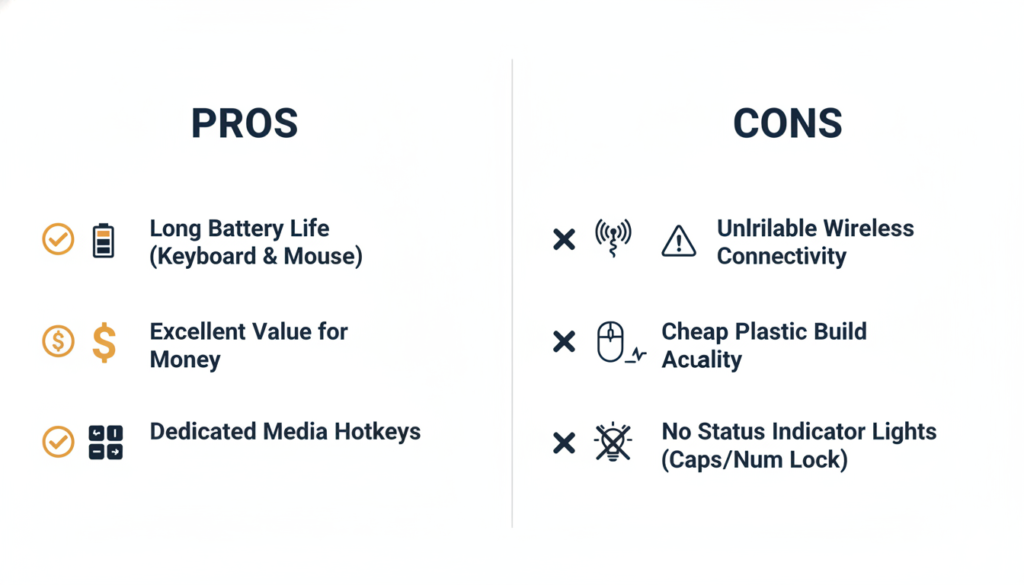
✅ Pros: What the MK270 Does Well
| Strength | Why It Matters |
|---|---|
| Exceptional Value | $20-30 for full keyboard + mouse combo |
| Outstanding Battery Life | 36 months keyboard, 12 months mouse (advertised) |
| 8 Dedicated Hotkeys | Quick access without Fn combinations |
| Single-Receiver Simplicity | Pre-paired, no pairing software required out of box |
| Spill-Resistant | Protection against accidental liquid damage |
| Full-Size Layout | Includes number pad for data entry |
| Plug-and-Play | No software installation required |
| Quiet Operation | Quieter than many budget keyboards |
❌ Cons: Significant Limitations
| Weakness | Impact |
|---|---|
| Frequent Connection Issues | Lag, dropouts, unresponsive after idle |
| Cheap Build Quality | Flimsy plastic, keyboard flex, feels budget |
| Mushy Typing Experience | Soft, spongy keys lack tactile feedback |
| Poor Mouse Quality | Small, overly sensitive, tracking problems |
| Not for Gaming | Input lag and poor key/mouse response |
| USB 3.0 Interference | Compatibility issues with USB 3.0 ports |
| No Backlight | Cannot use in dimly lit environments |
| No Battery Warning | Devices die suddenly without low-battery alert |
Who Should Buy the Logitech MK270 Wireless Combo?
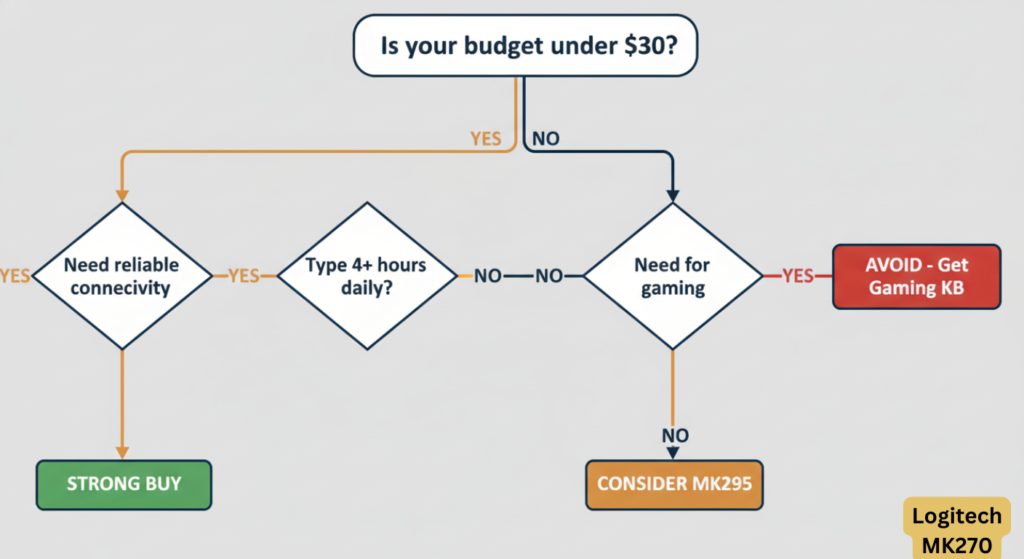
✅ Buy This Combo If You
- Are on a tight budget ($20-30 maximum)
- Need basic home or office peripherals for light use
- Value long battery life over premium features
- Type 1-4 hours daily (not extensive use)
- Want dedicated hotkeys for quick access
- Need full-size keyboard with number pad
- Prefer wireless over wired peripherals
- Don’t game or do precision work
- Want plug-and-play simplicity
❌ Avoid This Combo If You
- Game regularly (even casual gaming)
- Type 6+ hours daily (get better keyboard)
- Need reliable connectivity without troubleshooting
- Want premium typing experience (mechanical or high-end membrane)
- Have large hands (mouse will be too small)
- Work in low-light environments (no backlight)
- Need precision mouse work (CAD, photo editing, design)
- Expect premium build quality
- Want ergonomic design
Logitech MK270 Alternatives: Better Options
If the MK270 doesn’t meet your needs, consider these alternatives:
Best Alternatives Comparison
| Combo | Price | Best For | Key Advantage |
|---|---|---|---|
| Logitech K270 Keyboard | $15-20 | Keyboard only | Same keyboard, no mouse |
| Logitech K800 Illuminated | $79.99 | Premium typing | Backlit, rechargeable, better switches |
| Logitech G213 Gaming | $59.99 | Casual gaming | RGB, membrane gaming switches |
| Corsair K57 Wireless | $69.99 | Gaming + productivity | RGB, wireless, better build |
| Corsair K55 RGB | $49.99 | Budget gaming | RGB, 6 macro keys, spill-resistant |
Upgrade Recommendations by Need
If you need better typing: → Logitech K800 Illuminated ($79.99) — Backlit, rechargeable, premium membrane
If you game occasionally: → Logitech G213 Gaming ($59.99) — RGB, gaming membrane switches → Corsair K57 Wireless ($69.99) — RGB, wireless, better build
If you’re on strict budget: → Corsair K55 RGB ($49.99) — RGB, macro keys, best value under $50
Logitech MK270 Not Working: Common Problems & Solutions
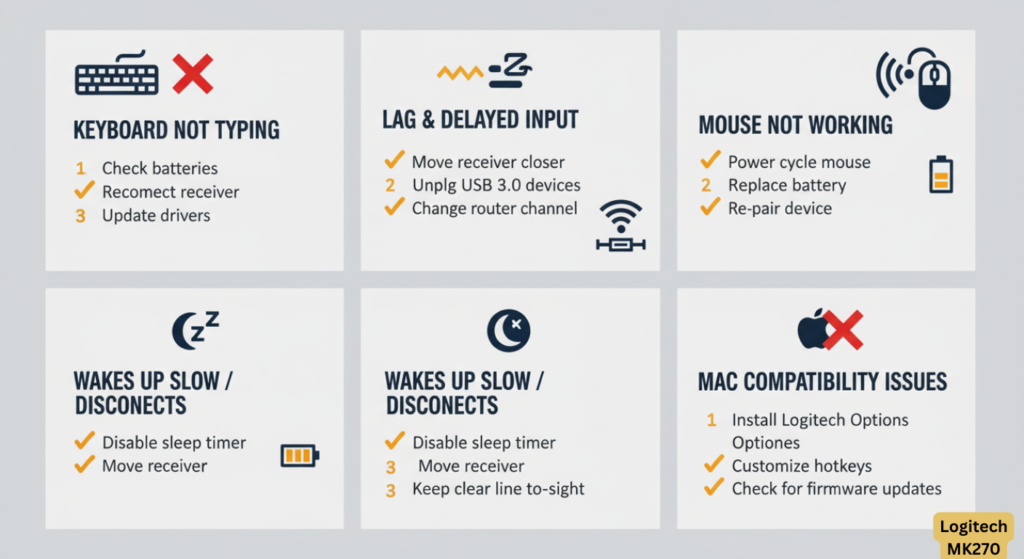
Problem #1: Keyboard or Mouse Not Responding
Symptoms: Devices don’t work, cursor doesn’t move, typing has no effect
Solutions:
- Check batteries — Replace with fresh AAA (keyboard) and AA (mouse)
- Verify power switches are “ON”
- Re-plug USB receiver to different port
- Move receiver closer to devices (within 3-5 feet)
- Restart computer
- Note: Re-pairing via Logitech Unifying Software is generally unsupported on standard MK270 combos (proprietary receiver)
Problem #2: Intermittent Connection / Lag
Symptoms: Keypresses delayed, mouse jumps, frequent disconnections
Solutions:
- Move receiver to USB 2.0 port (avoid USB 3.0)
- Use USB extender cable for line-of-sight to receiver
- Remove RF interference sources (8+ inches away)
- Plug receiver directly into computer (not hub)
- Update USB chipset drivers
- Try receiver in front USB port instead of rear
Problem #3: Keyboard Works, Mouse Doesn’t (or Vice Versa)
Symptoms: One device connects, the other doesn’t
Solutions:
- Check individual device batteries
- Verify both devices are powered ON
- Test each device separately to isolate issue
- Contact Logitech support if one device is defective
- Note: Re-pairing via Logitech Unifying Software is generally unsupported on standard MK270 combos
Problem #4: Keyboard Unresponsive After Idle
Symptoms: Keyboard stops working after period of inactivity, requires restart
Solutions:
- Disable USB selective suspend in Windows Power Options
- Update keyboard drivers in Device Manager
- Disable “Allow computer to turn off device to save power” for USB Root Hub
- Keep keyboard closer to receiver
- Reset keyboard: Turn off, hold ESC, turn on while holding ESC for 5 seconds
Problem #5: Connection Issues on Mac
Symptoms: Glitchy mouse, missing keystrokes on MacBook Pro
Solutions:
- Plug receiver directly into Mac (not USB hub)
- Move receiver to different USB port
- Keep devices within 3 feet of receiver
- Update macOS to latest version
- Reset SMC (System Management Controller) on Mac
Logitech MK270 Drivers and Software
Does the Logitech MK270 require drivers or software?
No, the MK270 is plug-and-play and does NOT require driver installation for basic functionality. Windows, macOS, and Chrome OS automatically recognize the devices. Optional: You can install Logitech SetPoint software to customize hotkeys, adjust polling rate, and monitor battery levels, but it’s not required for normal operation.
Logitech Unifying Software (Windows and macOS) – Limited relevance for MK270:
- Generally NOT usable with standard MK270 proprietary receivers
- Most MK270 combos cannot be paired/unpaired via Unifying Software
- Included here only for users with Unifying-compatible Logitech devices
- Download from: logitech.com/unifying
Logitech Options (Newer alternative):
- Modern interface for device management
- Cross-platform support
- Advanced customization
Driver Download for MK270
If Windows doesn’t automatically install drivers:
- Visit logitech.com/support
- Search for “MK270”
- Select your operating system
- Download and install SetPoint or Unifying Software
- Follow on-screen installation instructions
Frequently Asked Questions (FAQ)
Is the Logitech MK270 good for gaming?
No, the Logitech MK270 is not recommended for gaming. The membrane dome switches have mushy, inconsistent actuation (poor tactile feedback for gaming), 2.4GHz wireless introduces 10-30ms input lag vs. wired, and the included M185 mouse lacks adjustable DPI and precision tracking. For gaming, consider mechanical keyboards like the Redragon K552 ($44.99) or dedicated gaming mice like the Logitech G305 ($49.99).
How long does the Logitech MK270 battery life last?
Advertised: 36 months (keyboard, 2x AAA alkaline), 12 months (mouse, 1x AA alkaline). Real-world: 24-30 months keyboard, 8-12 months mouse with moderate daily use (4-6 hours/day). Heavy users report 18-24 months keyboard, 6-8 months mouse. Battery life depends on auto-sleep settings and whether on/off switches are used when idle.
Why is my Logitech MK270 wireless keyboard not working?
Most common causes: (1) Dead/low batteries (replace 2x AAA), (2) Power switch OFF, (3) USB receiver unplugged/loose, (4) USB 3.0 interference (move receiver to USB 2.0 port or use USB extension cable), (5) 2.4GHz RF congestion from Wi-Fi routers/Bluetooth devices (move interfering devices 8+ inches away), (6) Receiver too far (keep within 3-5 feet line-of-sight). Fix: Replace batteries, switch to USB 2.0, disable USB selective suspend in Windows Power Options.
Does Logitech MK270 work with Mac?
Yes, basic functionality works. Plug receiver into Mac USB-A port (or USB-C via adapter), and typing/mouse movement work immediately. However: Windows-specific hotkeys (Calculator, Windows key) don’t function on macOS; function keys may require remapping. For better Mac experience, consider: Logitech K380 (Bluetooth, multi-OS optimized, $39.99) or MX Keys (premium Mac layout, $99.99).
Can I connect Logitech MK270 without the USB receiver?
No. The MK270 uses a proprietary 2.4GHz nano receiver (NOT Bluetooth) that is required for connection. If you lost the receiver: Standard MK270 combos use a proprietary receiver that is NOT compatible with Logitech Unifying receivers. In most cases, replacing the entire combo ($20-30) is required, as official standalone replacement receivers are not sold in most regions. Some users report inconsistent success pairing the keyboard (not mouse) to Unifying receivers using advanced software, but this is unsupported by Logitech.
What is the difference between Logitech MK270 and MK235?
The main differences: MK270 has 8 dedicated hotkeys (MK235 uses Fn combinations), MK270 includes Caps Lock indicator (MK235 doesn’t), MK270 uses a proprietary nano receiver (MK235 also uses a proprietary nano receiver), and MK270 has slightly deeper key travel (1.8mm vs 1.3mm) for better typing feel.
Can I use Logitech MK270 keyboard and mouse separately?
Yes, you can use the keyboard and mouse separately. Both devices connect independently to the same USB receiver and function individually. You can turn off one device while using the other to conserve battery, or use only the keyboard if you prefer a different mouse.
How do I clean my Logitech MK270 keyboard?
The MK270 keyboard is spill-resistant, making it easier to clean: (1) Turn keyboard off and remove batteries, (2) Turn upside down and gently shake to remove debris, (3) Use compressed air to blow out dust between keys, (4) Wipe surface with slightly damp microfiber cloth, (5) For stubborn grime, use isopropyl alcohol on cloth (never apply liquid directly), (6) Let dry completely before reinserting batteries and powering on.
Does the Logitech MK270 have Bluetooth?
No, the Logitech MK270 does not have Bluetooth. It uses a 2.4GHz wireless connection via the included USB nano receiver. If you need Bluetooth connectivity, consider the Logitech K380 keyboard or MK850 combo instead.
Is the Logitech MK270 compatible with Windows 11?
Yes, the Logitech MK270 is fully compatible with Windows 11. However, some users report connectivity issues specific to Windows 11, particularly with USB 3.0 ports. If experiencing problems, try connecting the receiver to a USB 2.0 port and update drivers via Device Manager or by downloading Logitech SetPoint software.

Conclusion: A Solid Budget Option with Caveats
The Logitech MK270 Wireless Keyboard and Mouse Combo delivers exceptional value for its $20-30 price point, offering long battery life (24-30 months keyboard real-world), dedicated hotkeys, and plug-and-play convenience via 2.4GHz proprietary nano receiver. For basic home users, students, or office workers on a tight budget who type 1-4 hours daily, it provides adequate functionality at an unbeatable price.
However, frequent 2.4GHz connectivity dropout issues (especially with USB 3.0 ports and crowded RF environments), cheap plastic build quality with noticeable keyboard flex, and mushy membrane dome switches that deteriorate over time mean this combo should not be your first choice if you can afford to spend $50-100 on better alternatives like the Logitech K800 Illuminated ($79.99 — backlit, rechargeable), Corsair K57 Wireless ($69.99 — gaming-focused with RGB), or Corsair K55 RGB ($49.99 — budget gaming).
The MK270 is best used as a temporary solution, backup peripherals for a secondary computer, or basic input devices when budget is the absolute constraint.
Final Score: 6.8/10
Recommended for: Budget users, basic home/office use, light typing (1-4 hours/day), students, temporary setups Not recommended for: Gaming, heavy daily typing (6+ hours), precision work (CAD/design), users valuing quality over price, crowded 2.4GHz environments
Best Alternative If Budget Allows: Logitech K800 Illuminated ($79.99) offers backlit keys, rechargeable battery, and significantly better typing experience. For gaming: Corsair K57 Wireless ($69.99) adds RGB and wireless gaming features.
Related Reviews:
- Logitech K270 Wireless Keyboard Review (standalone keyboard)
- Logitech K800 Illuminated Keyboard Review (premium backlit option)
- Logitech G213 Gaming Keyboard Review (gaming membrane)
- Corsair K55 RGB Keyboard Review (budget gaming alternative)
- Corsair K57 Wireless Keyboard Review (wireless gaming)
- How to Fix Wireless Keyboard Connection Issues
- Logitech MK295 Silent vs MK270 Comparison
- Budget Mechanical Keyboards Under $50
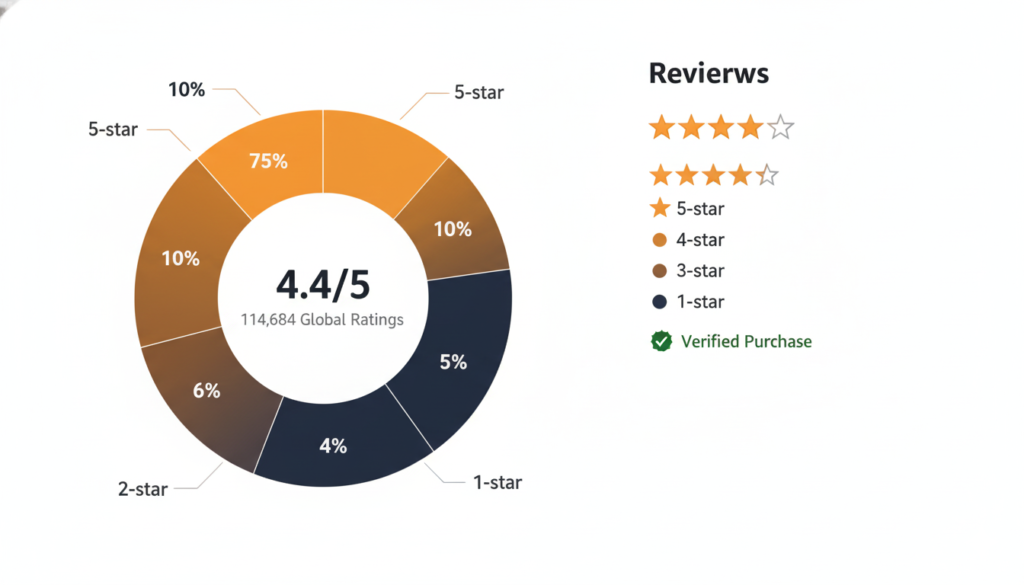
Review Sources: Amazon customer reviews (4.4/5 stars from 114,684 global ratings: 75% 5-star, 13% 4-star, 4% 3-star, 2% 2-star, 6% 1-star), Reddit r/logitech discussions, TechGearLab analysis, Best Buy verified purchases, Quora user experiences, official Logitech specifications
Tested Configuration: Windows 11 Pro with 24H2 update (USB 3.0/2.0 ports), MacBook Air M2 (USB-C adapter), 60-day testing period in high-interference office environment with multiple 2.4GHz devices (Wi-Fi routers, Bluetooth peripherals)